To share a document with anyone via a link:
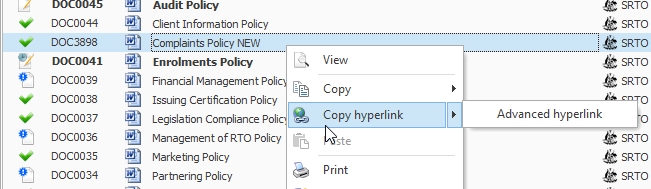
1.Right click the document you wish to share.
2.Select Copy hyperlink.
3.Paste the link into an email, message or website to share the document.
4.The Advanced hyperlink option gives you more control of the security of the document you are sharing.
5.Select Advanced hyperlink to access this dialogue box:
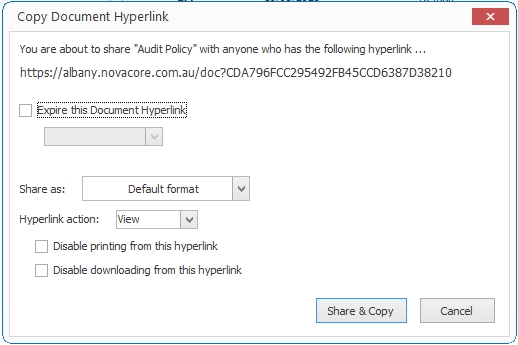
6.You have several advanced options:
•Expire this Document Hyperlink: For security reasons, you may want the link to expire after a period of time. Once the link has expired, no one will be able to access the document via that link. Use the drop-down to set the expiration period.
•Share as: If your document has already been published as a PDF, you can choose to share it in its original format instead. Note: This option will be disabled and default to PDF if you select Disable downloading or Disable printing.
The following options are only available if your document is shared as a PDF document:
•Disable printing from this hyperlink: The person receiving the link will not be able to download or print the document.
•Disable downloading from this hyperlink: The person receiving the link will be able to print the document, but they will not be able to download it.
Note
You can share multiple document links at a time by holding down your Ctrl key and selecting all of the documents you want to share. When you paste the links you've copied, they will paste as a list.
Note
The document hyperlink will only work if the document is approved, not past its review date (unless this is overridden in Application Options) and ticked as Public. When you share a document via a hyperlink, NovaCore will automatically publish it publicly. Note that the folder or framework that the document is in does not need to be published publicly in order for the link to work.
Note
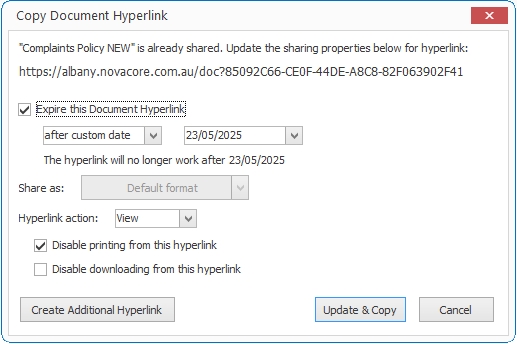
If the document has already been shared, the pop-up window will notify you of this and will give you the option to update the link's properties or to create an additional link.